Human Machine Interface

Human Machine Interface
 PLC and Remote IO

PLC and Remote IO
 Accessories

Accessories
For Weintek products
09.12.2025

Activation EasyAccess 2.0 in panels operator Weintek
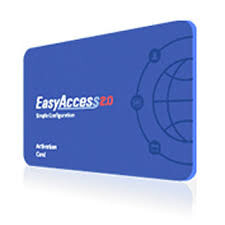
EasyAccess 2.0 provides solution For remote connections . To use EasyAccess 2.0, required activate license on Yours panels operator . In this guide it is explained how activate EasyAccess 2.0 at help software provision EasyAccess 2.0 on PC
Step 1. Download and install EasyAccess 2.0 software on your PC.
Download installer EasyAccess 2.0 and pass All stages installations .
Download EasyAccess 2.0
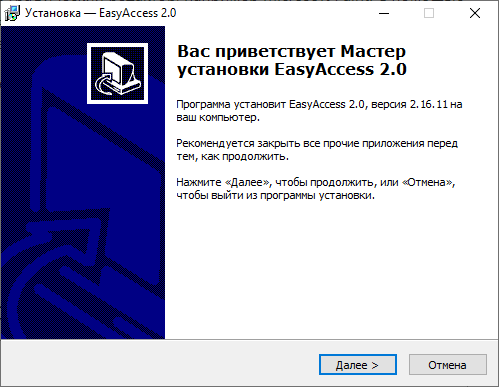
Launching installer EasyAccess 2.0 will open given window . Click " Next "
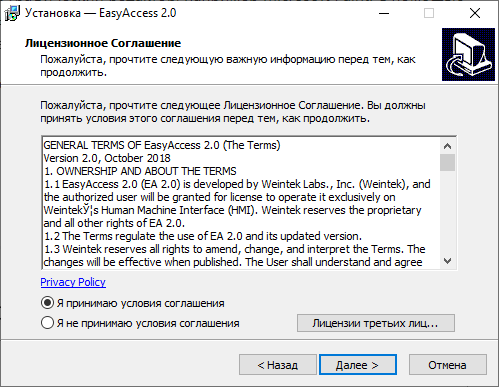
We are studying conditions agreement and select "I accept " conditions agreements " and click " Next "
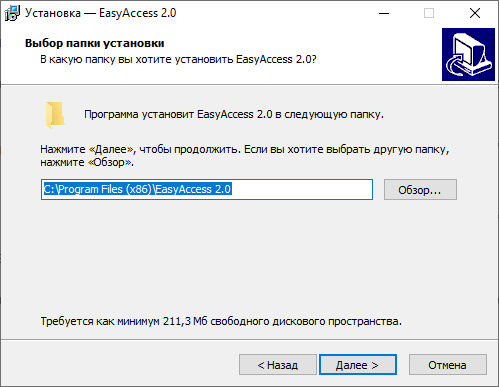
Click " Browse ..." to in order to choose folder where will installed program . Click " Next "
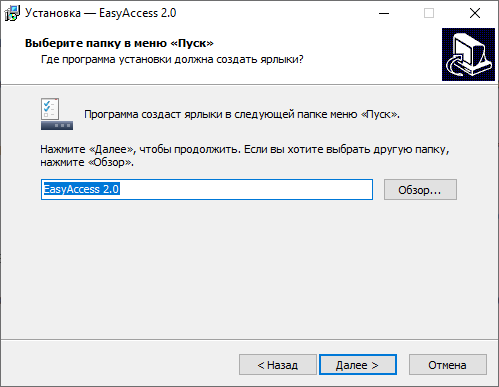
Click " Browse ..." to in order to choose folder in the Start menu where will created shortcut . Click " Next "
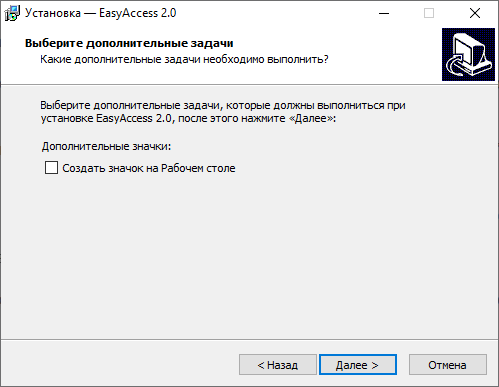
Installing flag " Create " icon on Worker table " if This necessary . Click " Next "
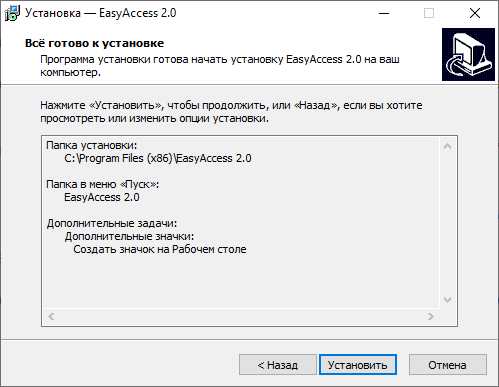
We're checking everything . whether right selected . If if you want anything Change - Click the " Back " button . If All correct - click " Install " button
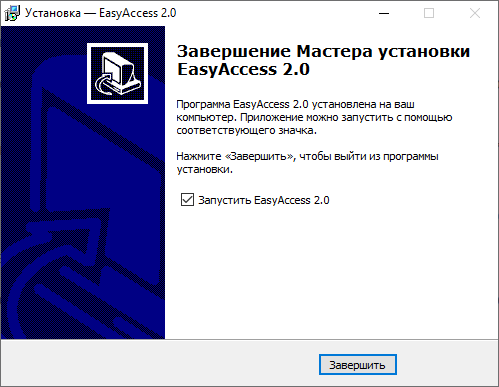
When process installations will end , will open This window . In it Can put up flag " Run" EasyAccess 2.0" and after pressing Clicking the " Finish " button will open EasyAccess 2.0 software .
Congratulations , you successfully installed EasyAccess 2.0 software on Your computer Step 2. Creation new Domain
In the appendix EasyAccess 2.0 create domain . Click [ Register ] below , to register new accounting recording domain .
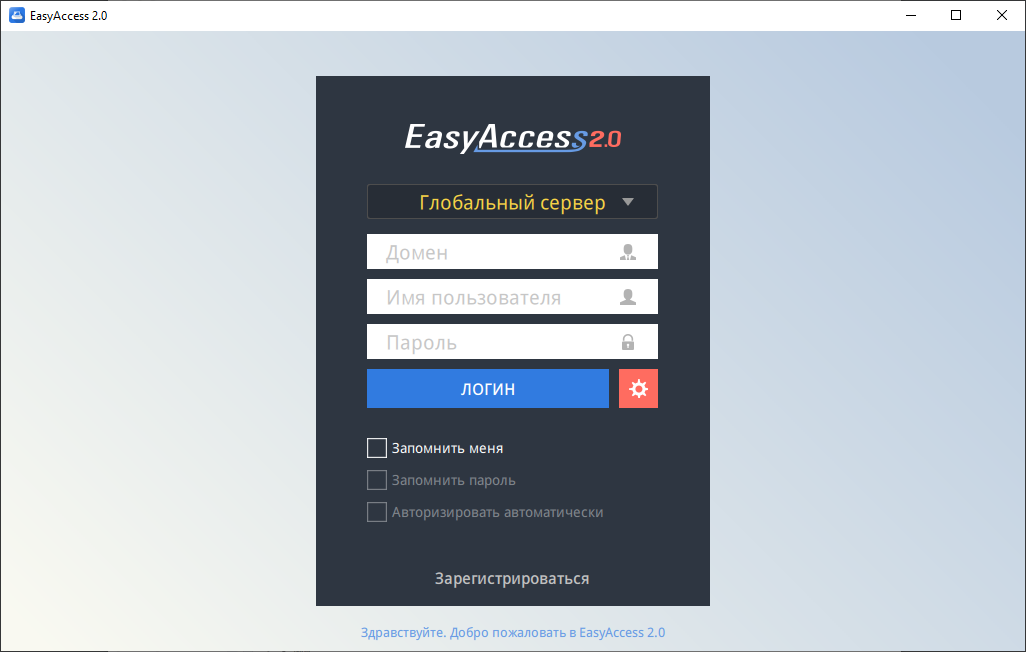
Enter Name domain , address electronic mail administrator and password administrator to register new accounting recording domain .
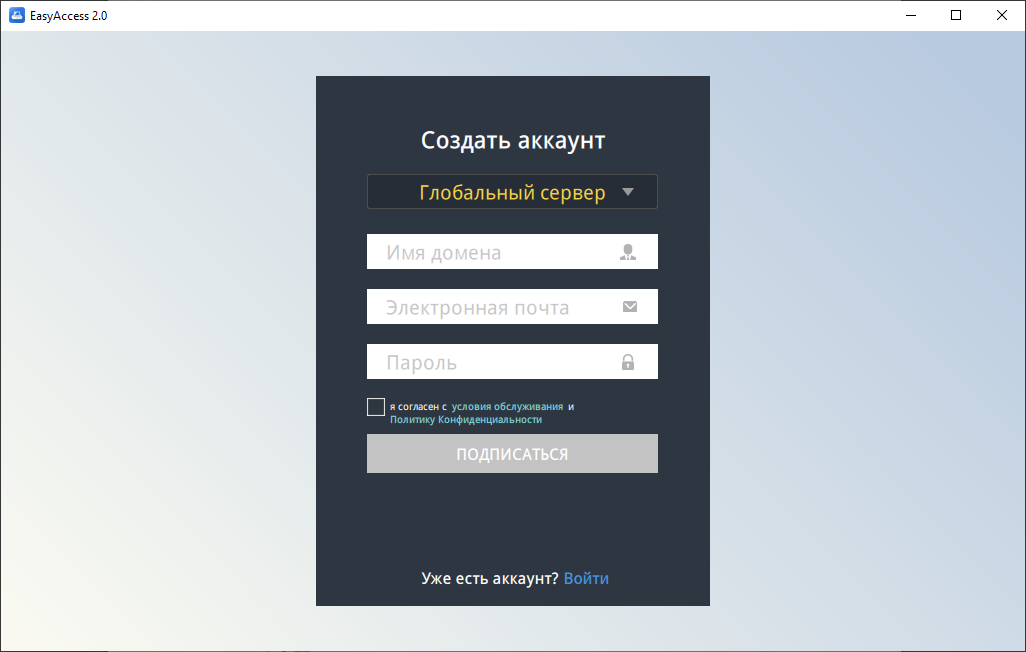
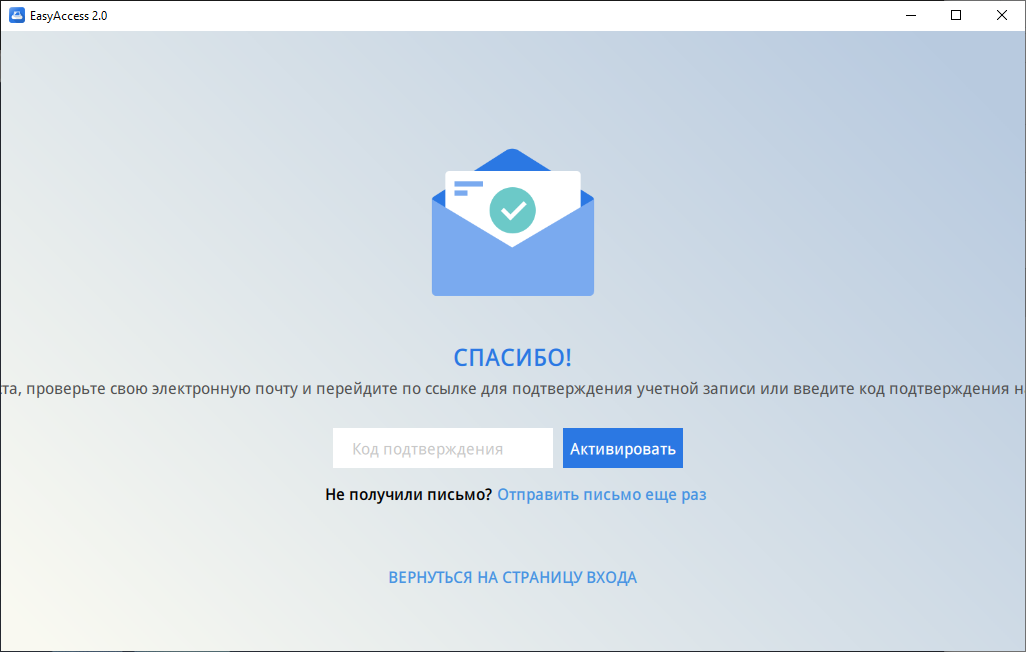
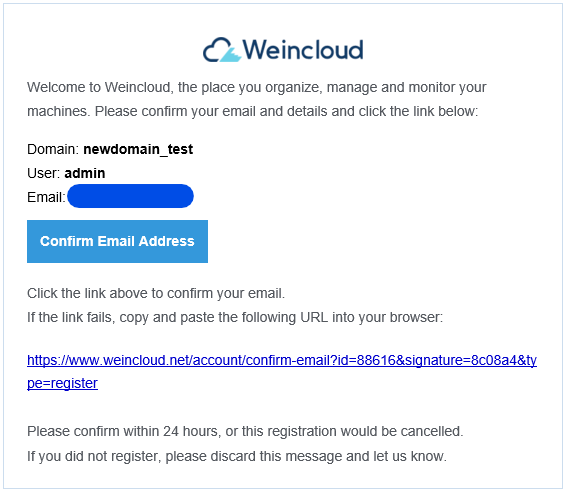
Check it out registered address electronic mail . You receive electronic letter confirmation registration "Registration Confirmation". Click link "Confirm Email Address» in in his own electronic letter or copy hyperlink to register domain . If You Not received none electronic letters , try " Send letter more times » .
So looks like electronic letter :
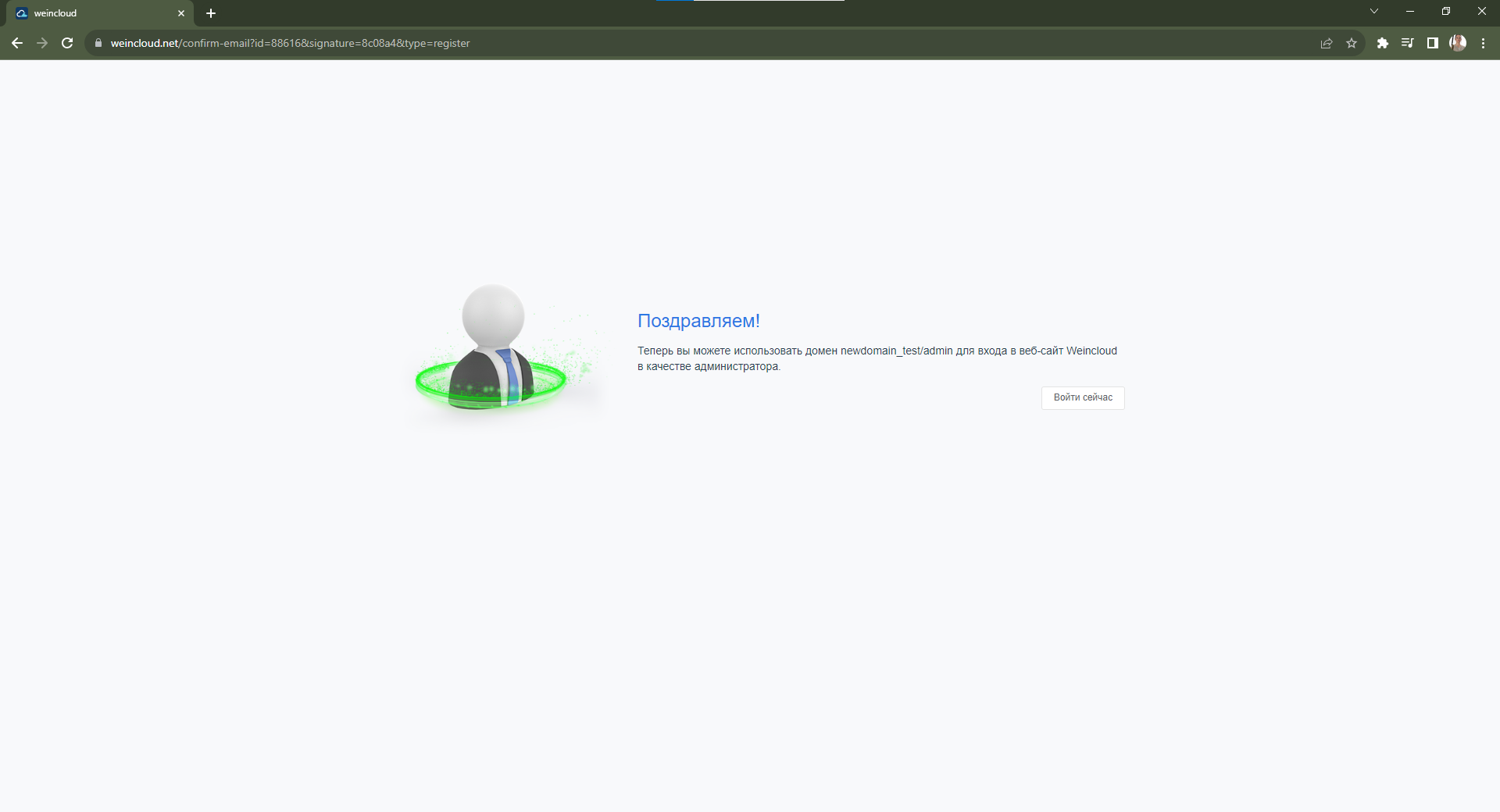
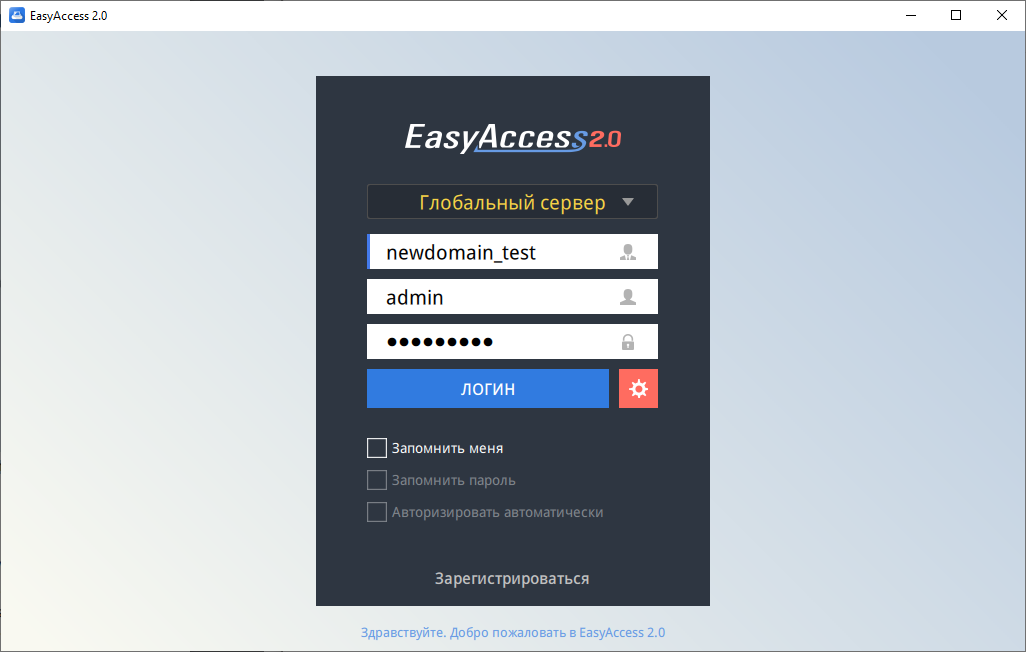
After completion registration domain application EasyAccess 2.0 automatically will enter V my accounting recording administrator . If will arise error , then enter manually Name domain name user , password and click [ Login ] button .
Step 3. Activation and addition panels to domain
|
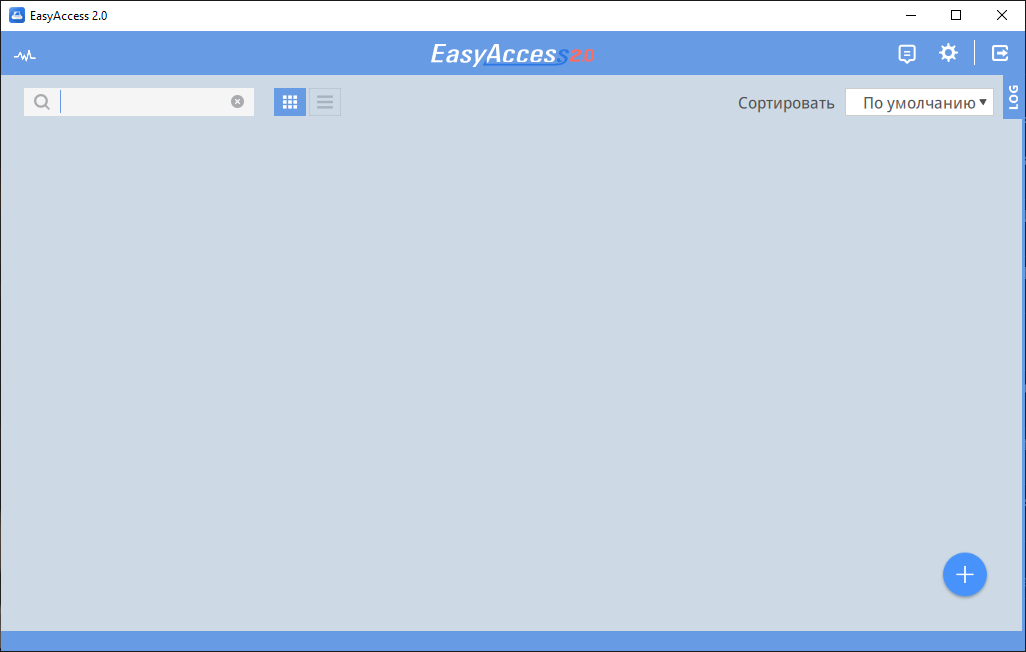
On the main thing screen applications click button |
 |
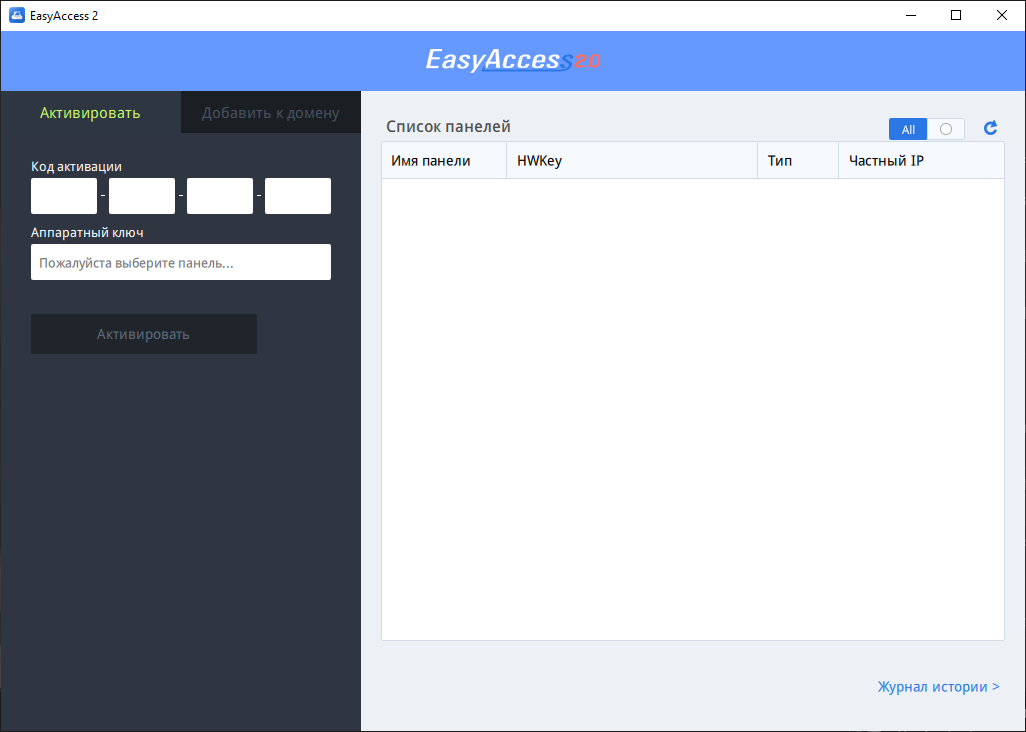
|
Connect the HMI and PC to one local networks . In the list panels click button |
 |
Select necessary panel , hardware key will register automatically .
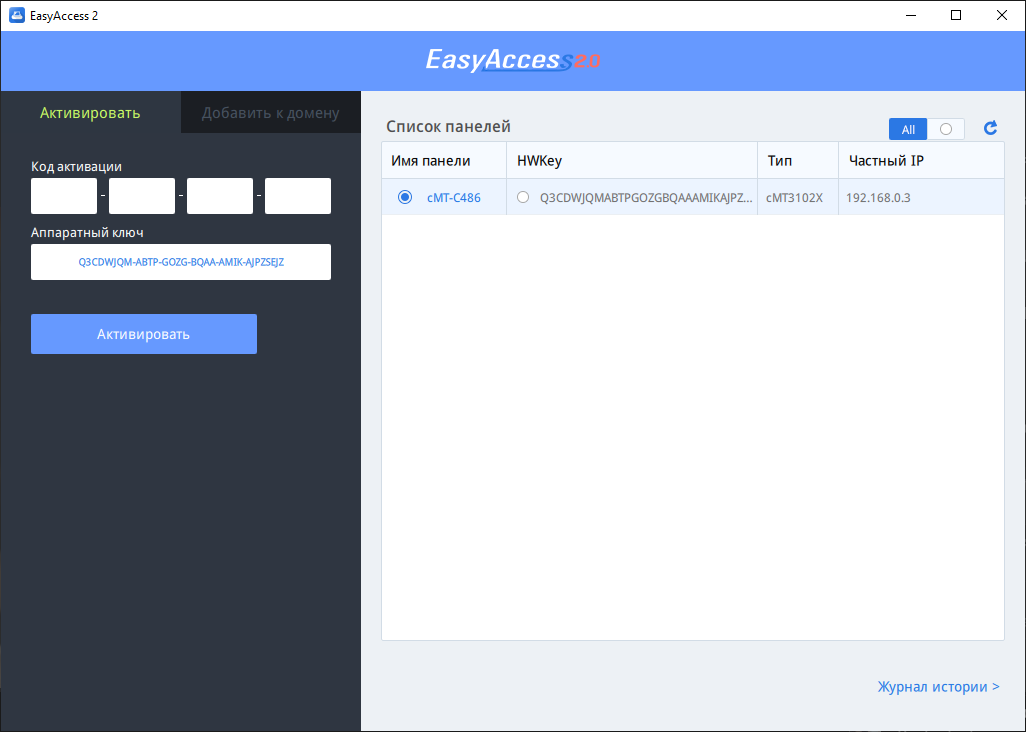
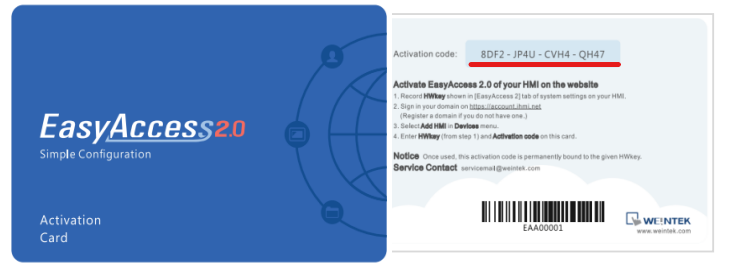
In the [ Code] field activation ] enter "Activation code ", which registered on reverse side physical cards activation EasyAccess 2.0. To read code , required erase protective field on card .
Click the [ Activate ] button and the panel will appear on the main thing EasyAccess software screen 2.0 .
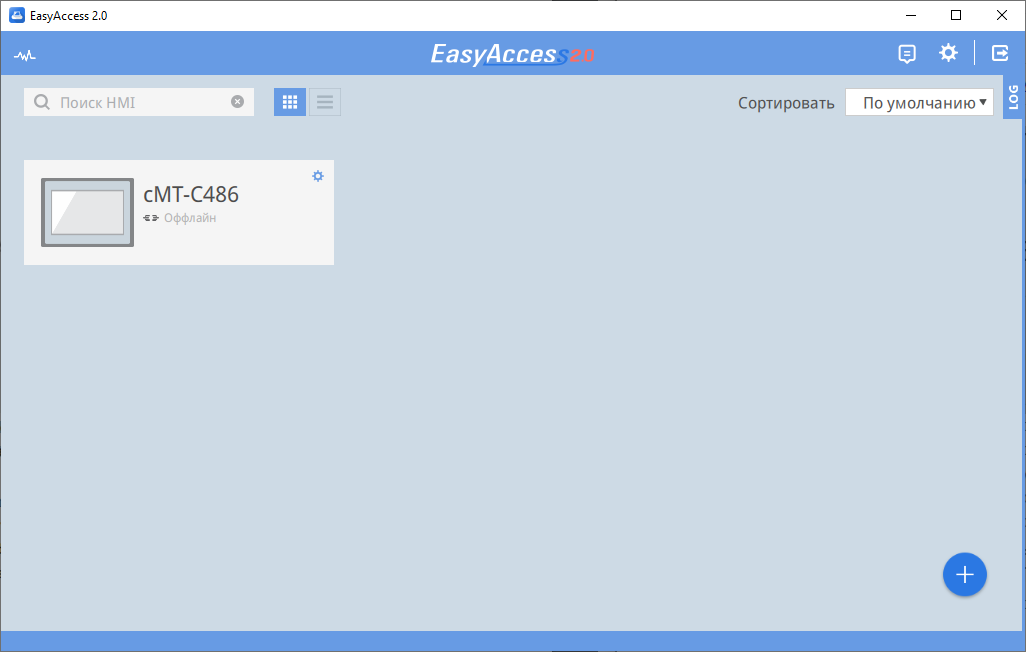
Activation panels completed . To begin work with remote service , it is necessary connect panel to the Internet By interface (WAN).
Open the booklet / download PDF